
Preset Note allows teachers to pre-save commonly used notes so they don’t need to type them every time
- Each activity can have up to 5 preset notes
- Teachers can quickly select a preset note when filling in activity details
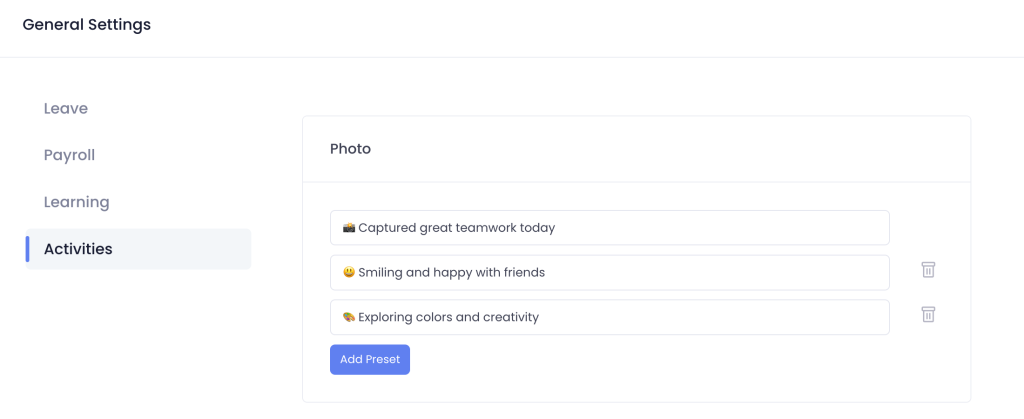
Setting Up Preset Notes #
- Go to the Settings > General Settings
- Select the Activities tab
- Add up to 5 short notes for each activity type
- Click Save
Using Preset Notes #
- When creating or editing an activity, go to the Notes field
- Tap on a preset note to insert it instantly
- You can still add or edit text manually if needed